Part 1: Ubuntu Users and Groups
Linux is a multi-user operating system. This means multiple people can be logged in and working on the same system simultaneously, and the system needs a way to differentiate their access.
1. Types of Users
Root User (Superuser):
The King/Queen: This is the most powerful user account (root). It has absolute, unrestricted access to the entire system.
UID 0: The root user always has a User ID (UID) of 0.
Caution: You should rarely log in directly as root. A single mistake can severely damage your system. Ubuntu disables direct root login by default and encourages the use of sudo.
Standard Users (Regular Users):
Everyday Use: These are the accounts you typically create for yourself and other users on the system (e.g., ubuntu, john, mary).
Limited Privileges: They have limited access and can only modify files in their own home directory or files they explicitly own. They cannot change system settings or access other users’ private files without specific permissions.
UIDs: Standard users usually have UIDs starting from 1000 (0-999 are reserved for system accounts).
System Accounts:
Behind the Scenes: These are special accounts created by the operating system or installed services (e.g., daemon, www-data, mysql).
No Login: They typically don’t have a login shell and aren’t meant for human interaction. They exist to run specific services securely.
UIDs: Usually have UIDs from 1 to 999.
2. Groups
Collections of Users: A group is a collection of one or more user accounts.
Shared Permissions: The primary purpose of groups is to simplify permission management. Instead of setting permissions for each individual user, you can set permissions for a group, and all members of that group inherit those permissions.
Primary Group
Every user must belong to at least one primary group.
By default, when you create a new user, a primary group with the same name as the username is also created (e.g., user john has primary group john).
Secondary Groups
Users can also be members of multiple secondary groups. This is how you grant a user additional privileges or access to shared resources without giving them root access.
Part 2: File Permissions
Every file and directory in Linux has a set of permissions that determine who can read, write, or execute it.
1. The Three Permissions
Read (r):
- Files: Allows viewing the content of the file.
- Directories: Allows listing the contents of the directory (i.e., seeing what files are inside).
Write (w):
- Files: Allows modifying or deleting the file.
- Directories: Allows creating, deleting, or renaming files within that directory.
Execute (x):
- Files: Allows running the file as a program or script.
- Directories: Allows entering (traversing) the directory, accessing its subdirectories, and files within it (if read permissions also allow listing).
2. The Three User Categories (Permission Triplet)
Permissions are applied to three distinct categories:
- Owner (u): The user
who ownsthe file or directory. - Group (g): The group
that ownsthe file or directory. Any user who is a member of this group will have these permissions. - Others (o): Everyone else on the system who is not the owner and not in the file’s owning group. (Sometimes called “world”).
3. Viewing Permissions (ls -l)
The ls -l command is your best friend for viewing file and directory permissions.
# Example Output:
-rw-r--r-- 1 john staff 1024 Jul 20 22:30 myfile.txt
drwxr-xr-x 2 john users 4096 Jul 20 22:31 mydirectory/
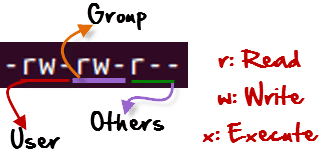
Let’s break down the first 10 characters: -rw-r–r–
- 1st character (- or d):
- -: Indicates a regular file.
- d: Indicates a directory.
- l: Indicates a symbolic link.
- (There are others like c for character device, b for block device, etc.)
- Next 9 characters (three sets of three): These represent the rwx permissions for:
- Owner (u): rw- (read, write, no execute)
- Group (g): r– (read, no write, no execute)
- Others (o): r– (read, no write, no execute)
Following the permissions:
- 1 (for file) / 2 (for directory): Number of hard links.
- john: The owner of the file/directory.
- staff / users: The group that owns the file/directory.
- 1024 / 4096: Size of the file in bytes (or directory size, which is usually 4096 for an empty directory).
- Jul 20 22:30: Last modified date and time.
- myfile.txt / mydirectory/: Name of the file/directory.
4. Changing Permissions (chmod)
The chmod command is used to change permissions. You can use two main modes:
Symbolic Mode:
More intuitive for adding/removing specific permissions.
- u: owner, g: group, o: others, a: all (u+g+o)
- +: add permission, -: remove permission, =: set exact permission
- r: read, w: write, x: execute
# Examples:

# Add execute permission for the owner.
chmod u+x myscript.sh

# Remove write permission for the group and others.
chmod go-w myfile.txt

# Give read, write, and execute to everyone (dangerous for directories!)
chmod a+rwx mydirectory/

# Set owner and group to read/write, others to read only.
chmod ug=rw,o=r myfile.txt

# Give read permissions to other
chmod o+r /MyStuff

# Remove, write and execute permissions for group and other
chmod go-wx /MyStuff
Numerical (Octal) Mode
More concise and commonly used for setting absolute permissions.
Each permission has a numerical value:
r = 4, w = 2, x = 1, - = 0
You sum the values for each triplet (rwx).
| Permissions | rwx | Value |
|---|---|---|
| All | 4+2+1 | 7 |
| Read & Write | 4+2+0 | 6 |
| Read & Exec | 4+0+1 | 5 |
| Read Only | 4+0+0 | 4 |
| Write & Exec | 0+2+1 | 3 |
| Write Only | 0+2+0 | 2 |
| Execute Only | 0+0+1 | 1 |
| None | 0+0+0 | 0 |
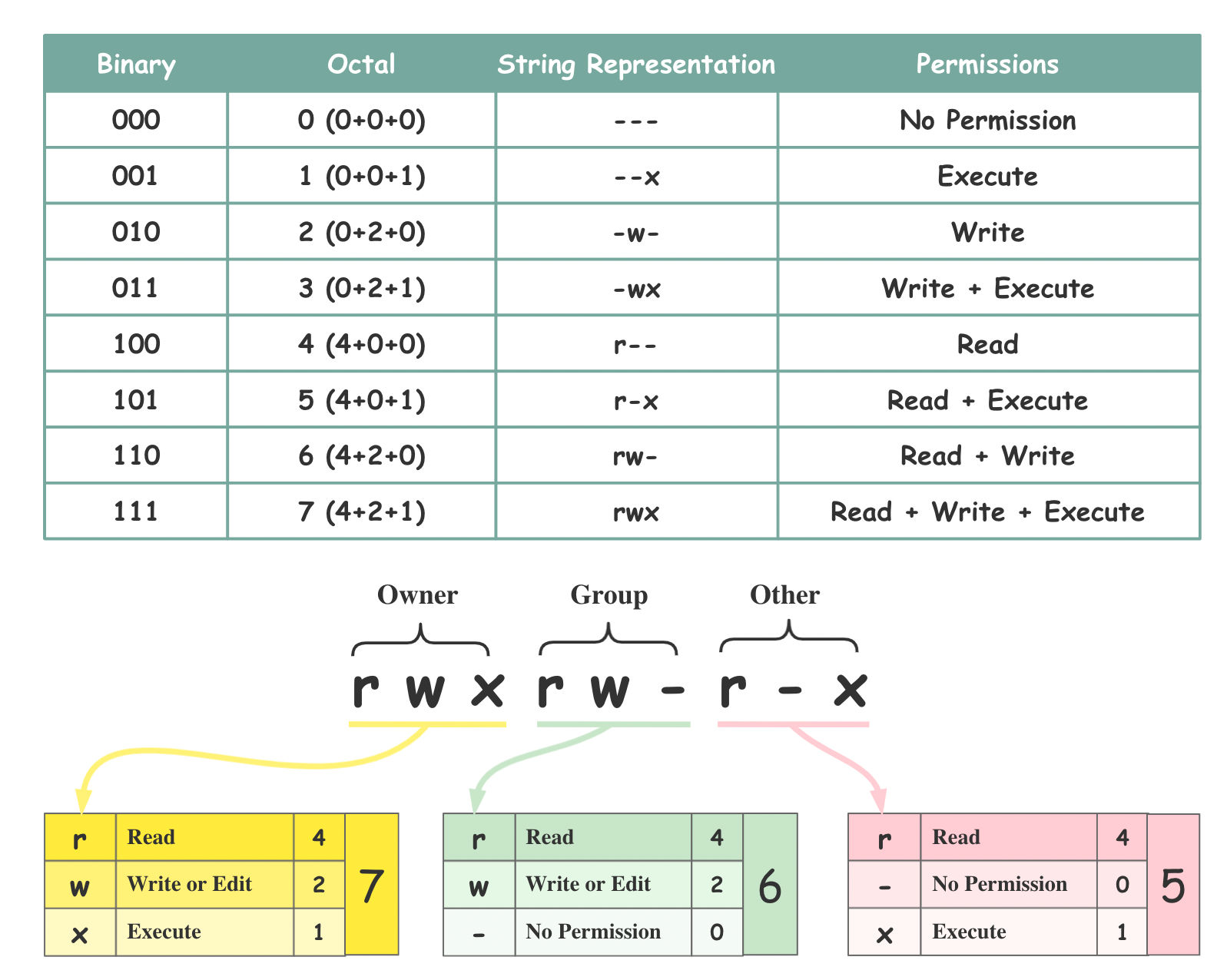
# Give rwx permissions to all
chmod 777 /MyStuff

# user--> 7(rwx), group-->5(r-x), other-->4(r--)
chmod 754 /MyStuff
- Common for executable scripts/programs.
chmod 755 myscript.sh

# Owner: rwx (4+2+1=7)
# Group: r-x (4+0+1=5)
# Others: r-x (4+0+1=5)
- Common for data files
chmod 644 myfile.txt:

# Owner: rw- (4+2+0=6)
# Group: r-- (4+0+0=4)
# Others: r-- (4+0+0=4)
- Very secure, read-only for owner, nobody else
chmod 400 myprivatekey.pem:

# Owner: r-- (4+0+0=4)
# Group: --- (0+0+0=0)
# Others: --- (0+0+0=0)
5. Changing Ownership (chown and chgrp)
chown (change owner)
- Changes the user owner of a file or directory.
- Syntax:
sudo chown <new_owner> <file/directory>
- Syntax:
- Can also change group owner simultaneously
- Syntax:
sudo chown <new_owner>:<new_group> <file/directory>
- Syntax:
# Makes john the owner
sudo chown john myfile.txt

# Makes john the owner and developers the group owner
sudo chown john:developers myfile.txt
chgrp (change group)
- Changes only the group owner of a file or directory.
- Syntax:
sudo chgrp <new_group> <file/directory>
sudo chgrp marketing reports/
6. Special Permissions
Beyond rwx, there are three special permission bits that can be set:
SetUID (SUID):
- On an executable file, allows the file to be run with the permissions of the file’s owner, rather than the user executing it.
- Displayed as s in the owner’s x position (e.g., -rwsr-xr-x).
- Used for commands like passwd (which needs root privileges to write to the shadow file, even when a regular user runs it).
- Numerical value: 4000 (e.g., chmod 4755 myfile).
SetGID (SGID):
- On an executable file, runs with the file’s group permissions.
- On a directory, new files and subdirectories created within it will inherit the parent directory’s group ownership, rather than the primary group of the user creating them. This is very useful for shared directories.
- Displayed as s in the group’s x position (e.g., -rwxr-sr-x).
- Numerical value: 2000 (e.g., chmod 2775 mydirectory).
Sticky Bit:
- Only applies to directories.
- Prevents users from deleting or renaming files within that directory unless they own the file or the directory itself (or are root).
- Commonly used for public directories like /tmp, where anyone can write but shouldn’t delete others’ files.
- Displayed as t in the others’ x position (e.g., drwxrwxrwt).
- Numerical value: 1000 (e.g., chmod 1777 /tmp).
Summary of Special Permissions (Numerical)
- When using numerical chmod, these special bits are added as a leading digit:
- chmod 4755 myfile (SUID)
- chmod 2775 mydirectory (SGID on directory)
- chmod 1777 /tmp (Sticky bit on directory)
- chmod 6755 myscript (SUID + SGID)